Need a refresher?
Voltage dividers

Scenario

Build the local sensing layer of an IoT system

Central question

How does a change in physical temperature become a live digital temperature display in LabVIEW?

You are building the first sensing node for an Internet of Things temperature-monitoring system. Before data can be sent to the cloud, the local system must correctly sense temperature, convert a physical change into voltage, acquire that voltage using Arduino, and display a meaningful temperature value in LabVIEW.

This lab focuses on the local sensing layer, not yet the cloud layer.

Need refreshers?
Voltage dividers · Analog input and ADC · LabVIEW LINX · VIs and SubVIs

Temperature changePhysical condition changes.
Thermistor resistanceThe sensor resistance changes.
Divider voltageA voltage appears at the junction.
Arduino A0Analog input reads voltage.
LabVIEW LINXVoltage data enters LabVIEW.
ConversionA model infers temperature.
DisplayCelsius, Fahrenheit, or Kelvin appears.

LabVIEW does not directly measure temperature. Arduino reads a voltage, and LabVIEW uses the course-provided thermistor conversion VI or instructor-provided sensor parameters to infer temperature.

Overview

Time, tools, and prerequisites

Pre-lab

30-45 minutes

Lab time

2.5-3 hours

Post-lab

30-45 minutes

Safety level

Low-voltage electronics. Wiring still must be checked before operation.

Software

LabVIEW, NI LabVIEW LINX Toolkit, Arduino firmware loaded for LINX, and the required A2L course files.

Hardware

Arduino Mega, thermistor, 10 kΩ resistor, breadboard, jumper wires, and USB cable.

Prerequisite: basic LabVIEW environment familiarity or an instructor demonstration.

Learning Outcomes

By the end of this lab, you should be able to...

Sensor modelExplain how a thermistor changes resistance with temperature.
Voltage dividerExplain why the circuit converts resistance change into measurable voltage.
Arduino roleIdentify how Arduino acquires analog sensor data from A0.
LabVIEW LINXIdentify how LabVIEW communicates with Arduino.
VI buildingBuild controls, indicators, arithmetic functions, and unit conversion logic.
SubVI reuseConvert a VI into a reusable SubVI with an icon and connector pane.
Live displayRead voltage, convert temperature, and display Celsius, Fahrenheit, and Kelvin.
TroubleshootingDiagnose hardware, firmware, wiring, and LabVIEW block-diagram faults.

Materials Checklist

Confirm the required materials

Gather the following software, hardware, and course resources before beginning the lab.

Need a refresher?
LabVIEW LINX

Pre-Lab

Activity A: Software readiness

Activity B: Build the sensing chain

Drag the events into order, or use the numbered selects if you prefer keyboard entry.

Activity C: Predict voltage-divider behavior

Hint after you have made a prediction

A voltage divider uses two resistances between 5 V and GND. Arduino A0 measures the voltage at the junction. If one resistance changes, the junction voltage changes.

Activity D: Temperature-unit conversion

Predict the Fahrenheit values, then check them using F = 1.8C + 32. Kelvin is K = C + 273.15.

Celsius inputYour predicted FahrenheitCheck result
0 °C
25 °C
100 °C

Stage 1

Can LabVIEW communicate with Arduino?

Use the LabVIEW Arduino firmware loading and testing instructions from A2L. Do not begin sensor troubleshooting until basic communication is proven.

Select the board and COM port you verified, then confirm the firmware status before proceeding to sensor work.

Need a refresher?
VIs and SubVIs

Stage 2

Build a basic temperature-conversion VI

Create a LabVIEW VI that converts degrees Celsius to degrees Fahrenheit. Save it as Convert C to F.vi.

How to build it: Front Panel
  1. Open LabVIEW and create a blank VI.
  2. Add a numeric control labelled deg C.
  3. Add a numeric indicator labelled deg F.
How to build it: Block Diagram
  1. Use Multiply, Add, numeric constant 1.8, and numeric constant 32.0.
  2. Wire the Celsius control through F = 1.8C + 32.
  3. Run the VI with several values before trusting it.
deg Cmultiply by 1.8add 32deg F

Think it through

  • Which object is the input?
  • Which object is the output?
  • Where is the equation represented in the block diagram?
  • What happens if a wire is missing?
  • How does LabVIEW dataflow differ from line-by-line text programming?
  • Why should you test 0 °C and 100 °C before trusting the VI?

Self-check table

Celsius inputExpected FahrenheitMeasured VI outputMatch?
032
2577
100212

Stage 3

Turn your conversion into a reusable SubVI

Take the Convert_C_to_F.vi and convert it into a SubVI. A SubVI is a reusable block that hides internal details while exposing defined inputs and outputs.

Step-by-step SubVI procedure
  1. Save a backup copy of the working Celsius-to-Fahrenheit VI.
  2. Open the VI front panel and confirm the control is named deg C and the indicator is named deg F.
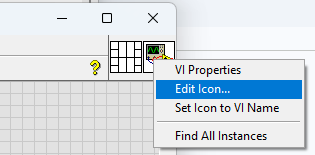
  3. Open the icon editor and create a simple, readable icon that communicates C to F conversion.
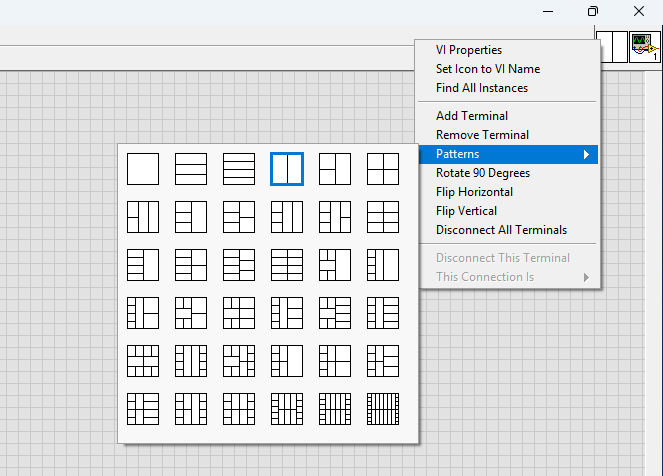
  4. Open the connector pane and choose a two-terminal pattern.
  5. Assign the left terminal to deg C and the right terminal to deg F.
  6. Turn on Context Help and hover over the SubVI icon to confirm the terminals are labelled correctly.
  7. Save the SubVI, then place it in a new test VI and verify 0, 25, and 100 degrees Celsius.
LabVIEW VI icon context menu with Edit Icon selected
Right-click the VI icon in the upper-right corner of the front panel and select Edit Icon.
LabVIEW connector pane Patterns menu with a two-terminal pattern selected
Open the connector pane Patterns menu and choose a two-terminal layout for the Celsius input and Fahrenheit output.

Core actions

  1. Edit the VI icon and make it represent C to F.
  2. Choose a connector pane pattern with two terminals.
  3. Assign the left terminal to deg C.
  4. Assign the right terminal to deg F.
  5. Use Context Help to verify the terminals.
  6. Save the VI.

Regular VI versus SubVI

Regular VI
  • Built and run directly
  • Front panel visible to the user
  • Contains full block diagram
SubVI
  • Used as a block inside another VI
  • Has defined input and output terminals
  • Encourages modular design and reuse

Think it through

  • What problem does a SubVI solve?
  • What information must be visible outside the SubVI?
  • What information can be hidden inside the SubVI?
  • Why does the connector pane matter?
  • What would happen if deg C and deg F were assigned to the wrong terminals?
  • Why is a meaningful icon more than decoration?

Need a refresher?
Analog input and ADC

Stage 4

Build and verify the thermistor voltage-divider circuit

Build the thermistor voltage-divider circuit using the thermistor, 10 kΩ resistor, Arduino Mega, breadboard, jumper wires, 5 V, GND, and A0.

Build focus

Use the instructor-provided schematic and bench hardware to identify the thermistor, fixed resistor, 5 V, GND, and the divider junction that feeds Arduino A0.

Sketch your own wiring map before powering. The goal is to understand the signal path rather than copy a picture.

Confirm placement before power. Confirm the exact thermistor and resistor placement with your instructor or the course-provided schematic before powering the Arduino. Reversing the thermistor and fixed resistor may reverse the temperature-voltage relationship.

Safe recovery sequence

If the reading is missing or implausible, disconnect USB power before moving wires. Verify 5 V, GND, the A0 divider junction, thermistor seating, and the 10 kΩ resistor row; then confirm LINX firmware, serial port, and analog channel 0. Change one item at a time and retest with a measurement or inspection.

Think it through

  • Why is the 10 kΩ resistor needed?
  • What does Arduino A0 actually measure?
  • Does A0 measure resistance directly?
  • How does a resistance change become a voltage change?
  • What would happen if the sensor wire to A0 were disconnected?
  • What would happen if 5 V and GND were accidentally shorted?
  • Why might touching the thermistor change the reading slowly rather than instantly?

Required evidence

Stage 5

Display Sensor reading in Celcius & Farenheit

Build a LabVIEW display that turns the voltage measured from the thermistor into a temperature reading. The user must be able to choose a unit and see the current reading as either Celsius or Fahrenheit.

Build the display

Front panel and block-diagram logic

Design Display

Place these items on the front panel. The visual references are placeholders for the LabVIEW controls and indicator you will select.

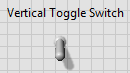
LabVIEW vertical toggle switch used for the temperature scale
Temp Scale switchChoose which unit the user sees: Celsius or Fahrenheit.
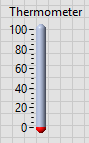
LabVIEW thermometer indicator
Thermometer indicatorDisplay the current temperature selected by the user.
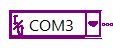
LabVIEW serial port control showing COM3
Serial Port constantIdentify the Arduino serial port for the LINX connection.
LabVIEW stop button
Stop buttonEnd the repeated measurement loop through a controlled stop.
Block Diagram Logic

Acquire data

Set up LINX Open with the Arduino serial port, then use LINX Analog Read with channel 0. Send the measured voltage to lab_2_thermistor_sensor.vi, the thermistor-conversion VI you downloaded from Avenue to Learn. Use its Celsius output for the temperature display, and use LINX Close after execution ends.

Display it Continuously

Place the repeated read-and-convert logic inside a While Loop. Each loop iteration reads the latest voltage and converts it to Celsius, so the display continues to update until the Stop button is pressed.

Manipulate to display C or F

Use your C-to-F SubVI to create the Fahrenheit value. Then wire the Temp Scale switch to a Select function so it passes either the Celsius value or Fahrenheit value to the thermometer indicator.

Test and record

Test the temperature response

Run the VI. Put a finger on the temperature sensor and notice whether the temperature increases. Stop the VI using the Stop button, not Abort. Save the file as Thermometer.vi.

Evidence itemStudent record
Initial temperature
Temperature after warming sensor
Approximate time for noticeable change
Returns toward room temperature?
Celsius and Fahrenheit displays consistent?
One possible reason for noise or slow response

Think it through

  • Why does the reading not jump instantly?
  • Is the thermistor measuring air temperature, finger temperature, or something in between?
  • How could you test whether the sensor is responding consistently?
  • How could the circuit be correct but the displayed temperature still be wrong?
  • What assumptions are hidden inside the thermistor-conversion VI?
  • What evidence would make you trust the system as an IoT temperature node?

Stage 6

Add a Kelvin display

Add an additional third option thermometer or numeric indicator showing Kelvin. Use K = C + 273.15.


The chooser records the selected filename as local evidence in this browser. It does not upload or submit your VI or report. Accepted formats are PNG, JPG, and PDF.

Think it through

  • When is a SubVI worth creating?
  • When is direct block-diagram logic sufficient?
  • What are the benefits of modularity?
  • What are the costs of too many small SubVIs?
  • Should Kelvin depend on Celsius or Fahrenheit?

Deliverables

Submission checklist

Reflection

Final questions

Learning Outcomes Achieved

What you can now demonstrate after completing this lab:

Sensor modelExplain how temperature changes thermistor resistance.
Voltage dividerTrace resistance change to a measurable junction voltage.
Arduino roleIdentify A0 as the analog-voltage acquisition point.
LabVIEW LINXExplain how voltage data reaches LabVIEW.
VI buildingBuild and test temperature-conversion controls, logic, and indicators.
SubVI reusePackage unit conversion as a reusable SubVI.
Live displayDisplay and verify Celsius, Fahrenheit, and Kelvin readings.
TroubleshootingDiagnose the sensing chain with one evidence-based change at a time.

Glossary

Key terms

Thermistor
A resistor whose resistance changes with temperature.
Resistance
Opposition to electric current, measured in Ω.
Voltage divider
Two resistive elements that create a measurable junction voltage.
Analog voltage
A continuously varying voltage value.
Arduino analog input
A microcontroller input that measures voltage and converts it to a number.
A0
Analog input channel 0 on the Arduino.
ADC
Analog-to-digital converter.
LabVIEW
A graphical programming environment.
VI
Virtual Instrument, a LabVIEW program.
Front Panel
The user-facing controls and indicators of a VI.
Block Diagram
The graphical program logic of a VI.
Control
A LabVIEW input object.
Indicator
A LabVIEW output display object.
SubVI
A reusable VI used as a block inside another VI.
Connector pane
The terminal mapping that defines SubVI inputs and outputs.
LINX
LabVIEW toolkit for communicating with supported hardware such as Arduino.
Serial port
The communication port used by the computer to talk to Arduino.
While loop
A repeated LabVIEW structure that continues until a stop condition is met.
Stop button
A controlled way to end a running VI.
Abort button
An emergency stop that can interrupt cleanup logic and should not be the normal stop method.
Celsius
A temperature scale based on water freezing at 0 and boiling at 100 under standard conditions.
Fahrenheit
A temperature scale where F = 1.8C + 32.
Kelvin
An absolute temperature scale where K = C + 273.15.
Calibration
Relating measured signals to meaningful physical values.
Sensor noise
Small variation in readings caused by circuit, environment, or measurement limits.
Settling time
The time required for a sensor reading to approach a new stable value.
IoT sensing node
A local device that senses a physical condition and can later send data to a network or cloud system.